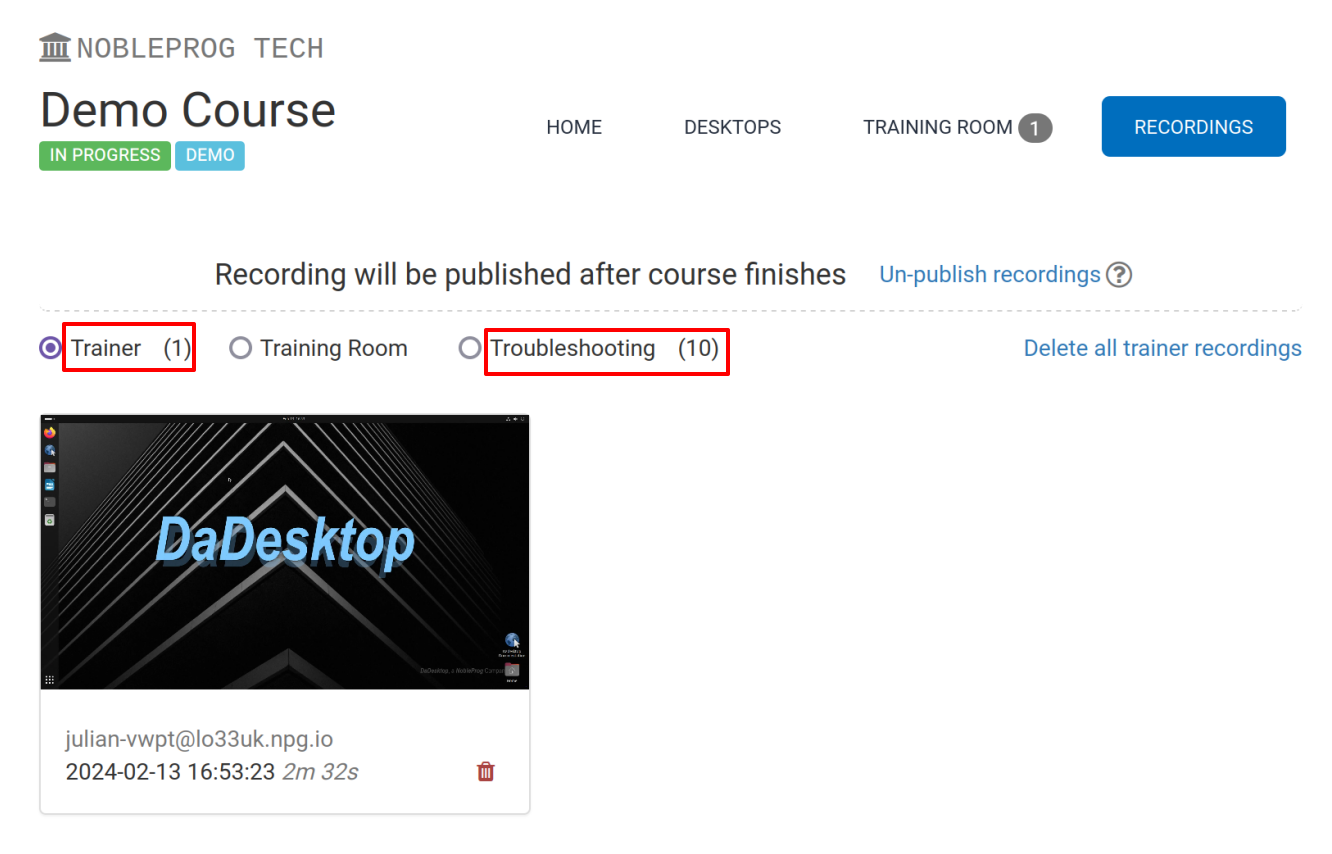
Trainer Recordings

DaDesktop offers several ways to record desktops and course sessions. These can be trouble-shooting recordings, training room recordings, and trainer recordings.
Trainer recordings capture the trainer's DaDesktop machine. Trainers can start recording the trainer machine's session like this.
- Click the three vertical dots, which opens a small dropdown menu. From the dropdown, select 'Connect (with session recording)'
-

An audio/video recording of the trainer machine is made, but you can't view it until after the virtual classroom is closed, at which point the recording is created. Note: As a SuperAdmin user, there's an extra menu option to view live recordings as they're being made.
- To view and edit recordings, click the 'cog' icon and go to the Recordings menu.

Recordings
You can view trainer recordings of your trainer machine in two ways.
- Recordings can be accessed from the Recordings menu as shown above. You can play and delete recordings as needed. The double spanner icon indicates 'Troubleshooting recordings' — these are created automatically for troubleshooting when required, not for presentation.

2. Using the 'Recordings' tab within a course, you can see trainer recordings, training room recordings, and troubleshooting recordings.